Steps for Host

Turn Your Love for Cooking Into Something Meaningful

Host on Eatiso and share food that brings people together

Eatiso is a community-driven platform where home cooks open their kitchens to people who value real, homemade food.
If you enjoy cooking and love sharing your food with others, this is a place where your passion can turn into experiences — and income — on your own terms.

What Does Hosting on Eatiso Mean?

Hosting on Eatiso is not about running a restaurant.
It’s about sharing food the way it’s meant to be shared — warm, personal, and rooted in culture.

As a host, you can:

  • Serve home-cooked meals

  • Host private dining or group meals

  • Offer regional or traditional recipes

  • Create special food experiences for guests

You decide what you want to offer and how you want to host.

Why People Choose to Host on Eatiso

Hosting gives you the freedom to earn from something you already love doing.

  • Cook from your own kitchen
  • Set your own prices and availability
  • No fixed costs or long-term commitment
  • Start small and grow at your own pace
  • Get discovered by food lovers near you

We take care of the platform and bookings, so you can focus on cooking and hosting.

Who Is This For?

You can host on Eatiso if you are:

  • A home cook or food enthusiast

  • A homemaker looking for flexible income

  • Someone who enjoys hosting and meeting people

  • A small food creator or pop-up operator

You don’t need professional training — authentic home food is what makes experiences special.

A Safe & Supportive Platform

We believe hosting should feel comfortable and secure.

  • Clear booking flow

  • Transparent communication

  • Support team available when needed

  • Control over your schedule and offerings

You host only when you want to.

Host Registration—Step-by-Step Guide

Become a Host on Eatiso and start selling your food or experiences in just a few simple steps.
The complete process is easy and can be finished in a few minutes.

Click 👇to 

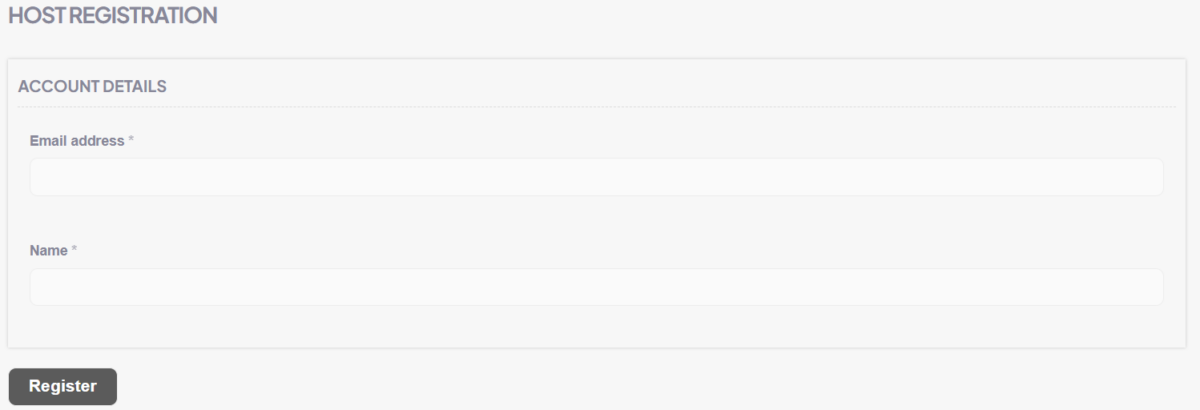
Step 1: Register as a Host

What you need to do

Start by registering yourself as a host on the website.

Instructions

  • Go to Host Registration page

  • Enter your Email address

  • Create your account

  • Click on Register

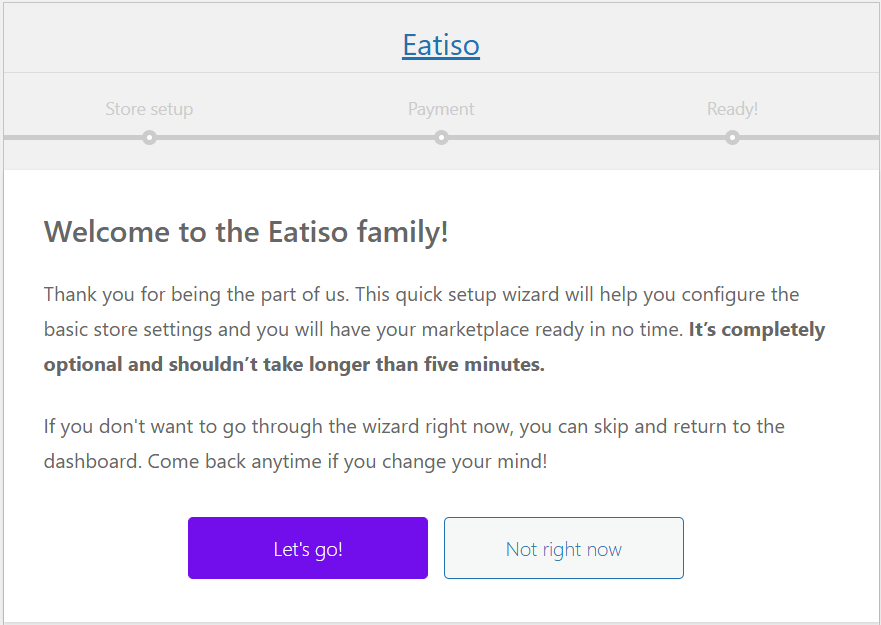
Step 2: Click on “Let’s Go”

After successful registration, you will see a welcome screen.

Instructions

  • Read the welcome message

  • Click on “Let’s go!” to start store setup

👉 If you don’t want to complete setup right now, you can skip and return later from dashboard.

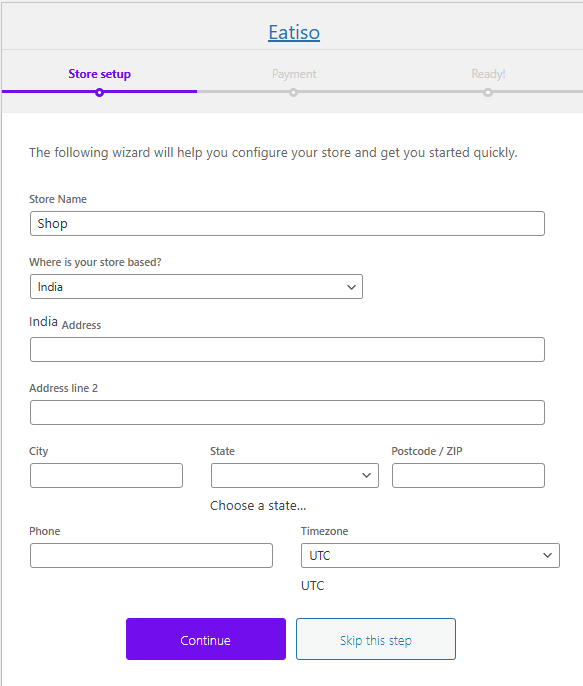
Step 3: Fill in Store Details (Store Setup)

Now you need to add basic store information.

Details to fill

  • Store Name

  • Country (India)

  • Address

  • City, State & Pincode

  • Phone number

  • Time zone

Instructions

  • Fill all required fields

  • Click Continue

👉 You can also click Skip this step and complete it later.

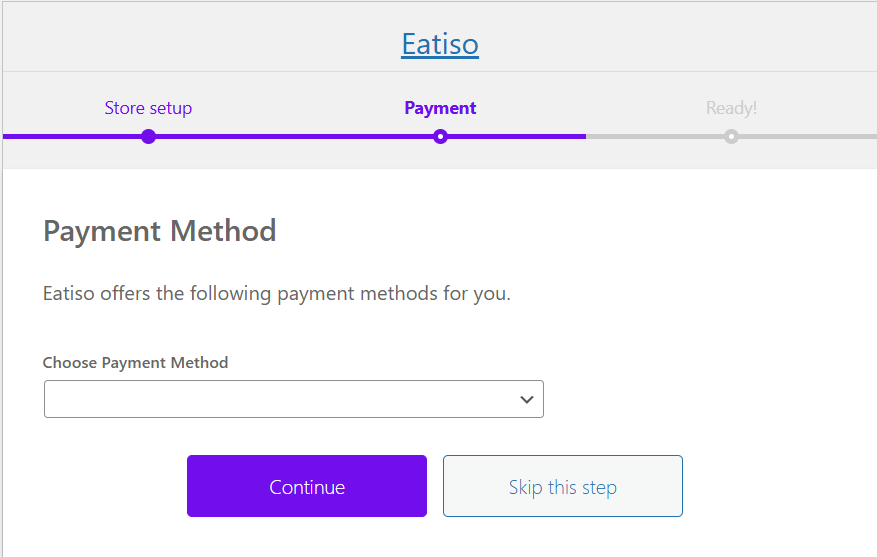
Step 4: Choose Payment Method

In this step, you can configure how you will receive payments.

Important Note

  • Payment setup is optional

  • You can skip this step and add payment details later from dashboard

Instructions

  • Select payment method (if available)

  • Click Continue
    OR

  • Click Skip this step

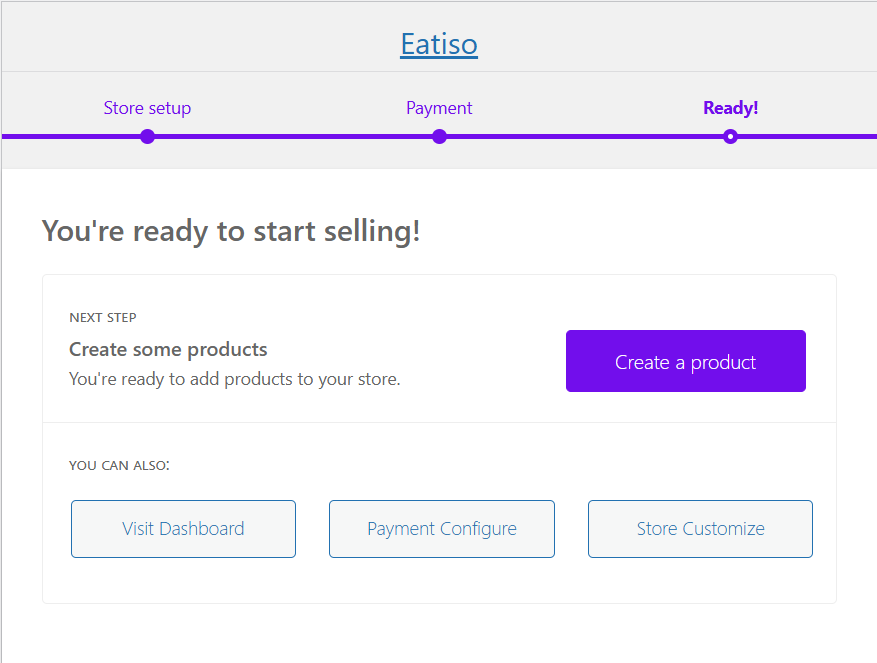
Step 5: Setup Complete – You’re Ready!

Your host account is now ready.

Available Options

  • Create a Product—Start adding items to sell

  • Visit Dashboard—manage store later

  • Payment Configuration – add payment details

  • Store Customize—update store look & details

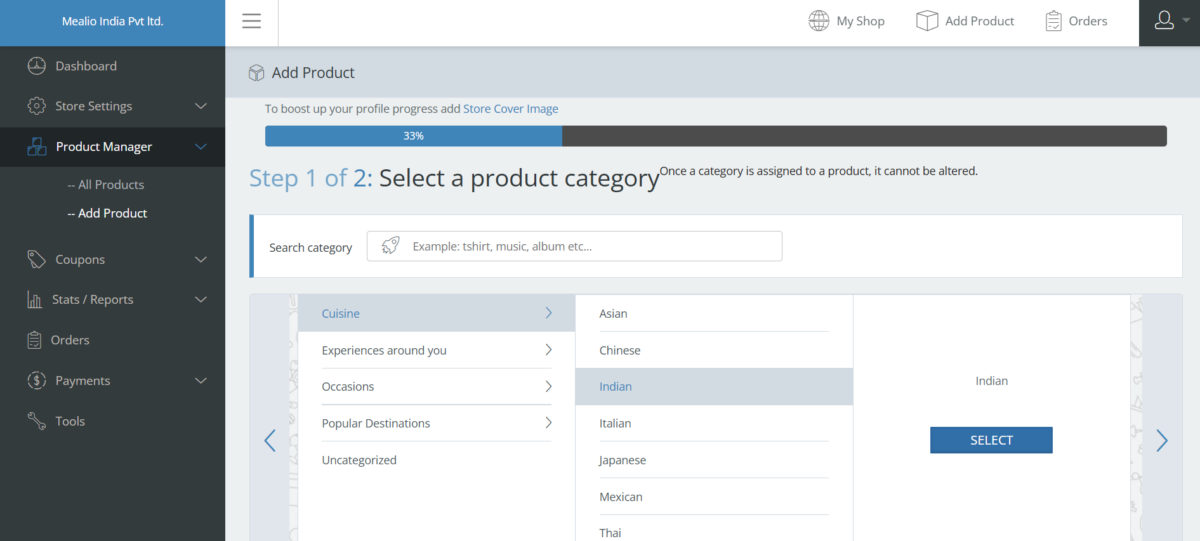
Step 6: Add a Product – Select Category

To add a product, first choose a category.

Instructions

  • Go to Add Product

  • Search or browse categories

  • Select the most relevant category (example: Cuisine → Indian)

  • Click Select

⚠️ Note: Once a category is selected, it cannot be changed later.

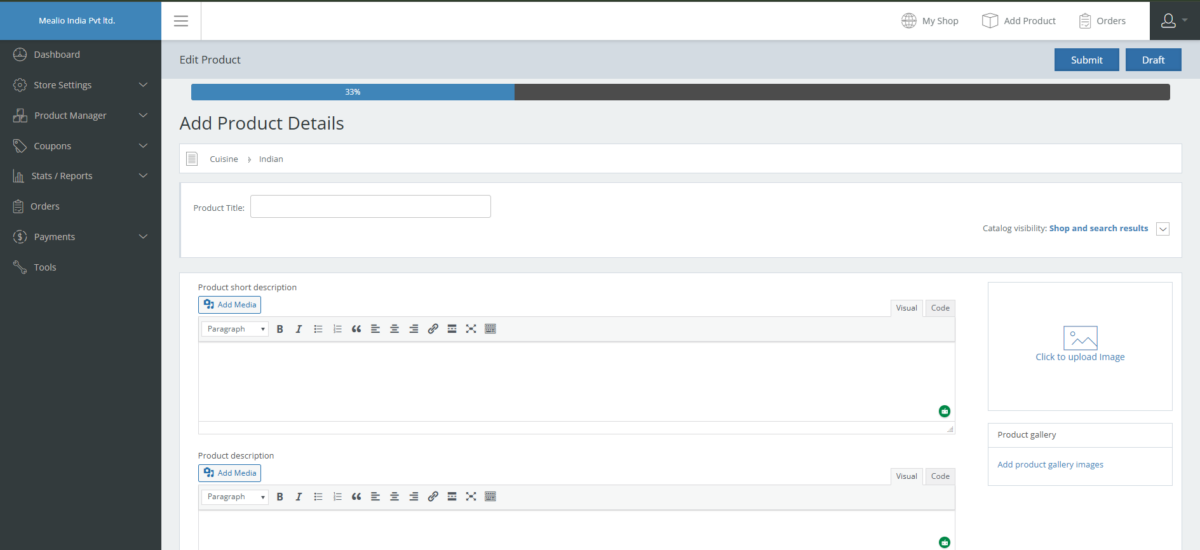
Step 7: Fill Product Information

Now add complete product details.

Information to add

  • Product Title

  • Short Description

  • Full Description

  • Product Image

  • Product Gallery (optional)

  • Visibility & other details

Instructions

  • Fill all required fields

  • Upload clear images

  • Click Submit or Save Draft

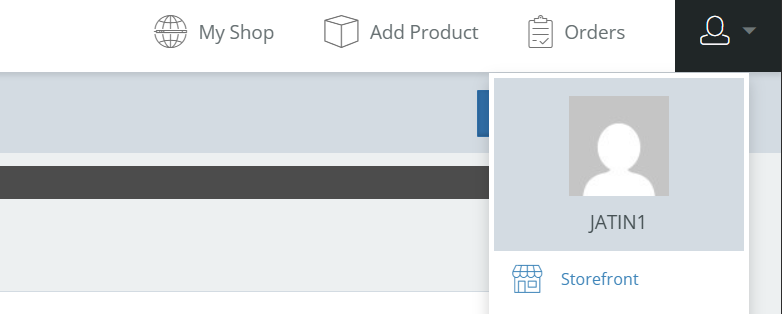
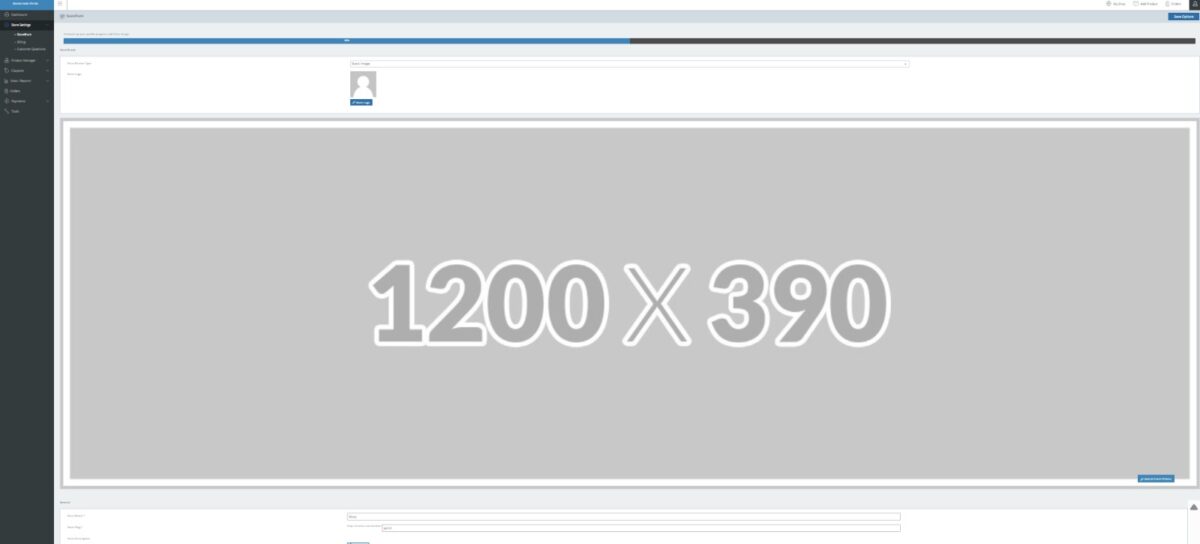
Step 8: Customize Your Store

You can edit your store anytime from the dashboard.

You can update

  • Store Name

  • Store Logo

  • Store Cover/Background Image

  • About Us section

  • Contact Email

  • Social Media Links

Instructions

  • Go to Store Settings / Storefront

  • Update details as needed

  • Save changes